


How to Use Your Profile
On this page
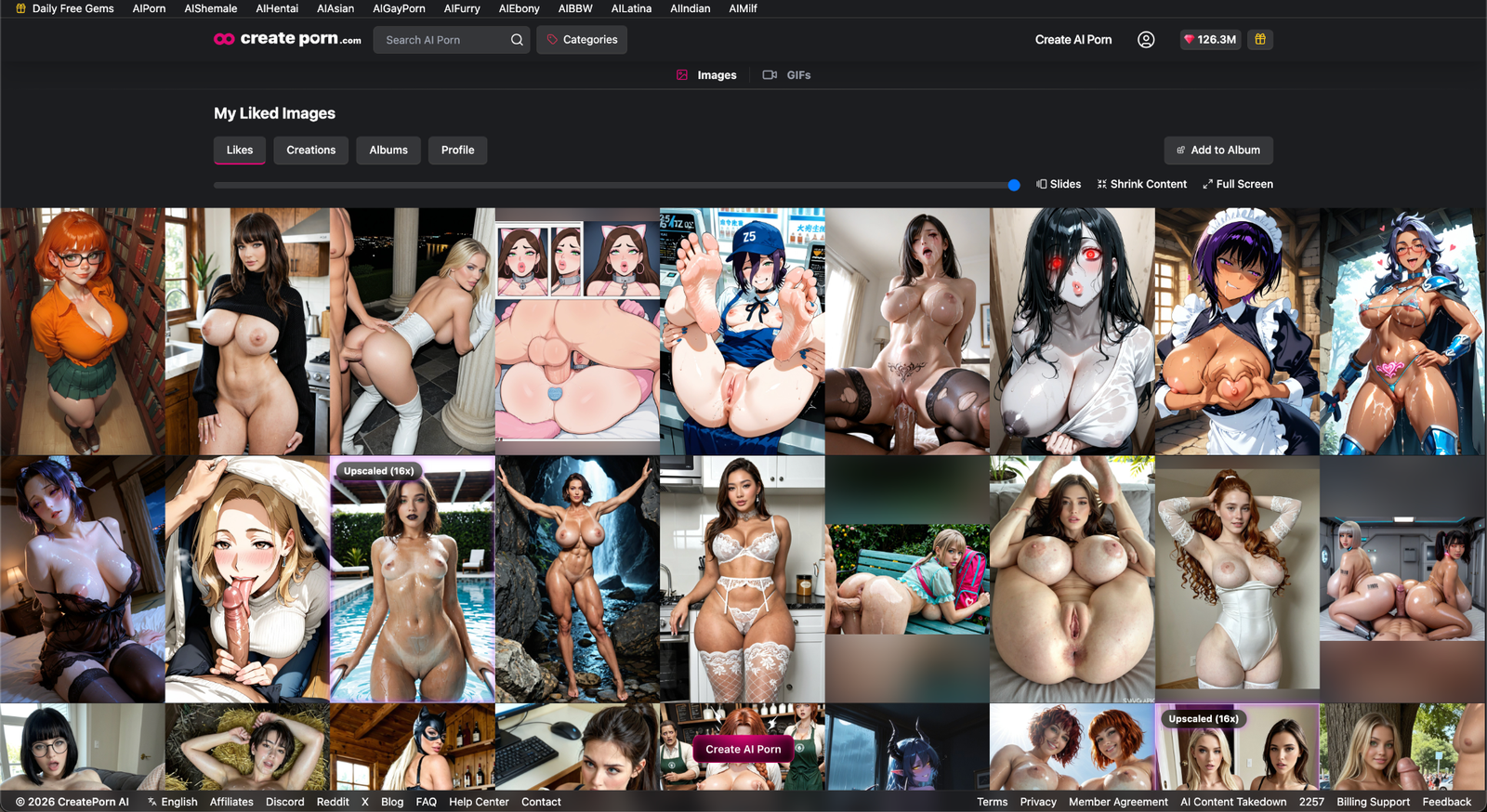
Your Profile is your personal space on the platform.
You can use it to:
- View your generated Images
- Find the images you have liked
- Organize Creations into Albums
- Showcase your published work
- Review the Prompts and settings used for your Creations
Note: All saved and published content must follow our Community Guidelines and Prohibited Content policies.
How to Access Your Profile
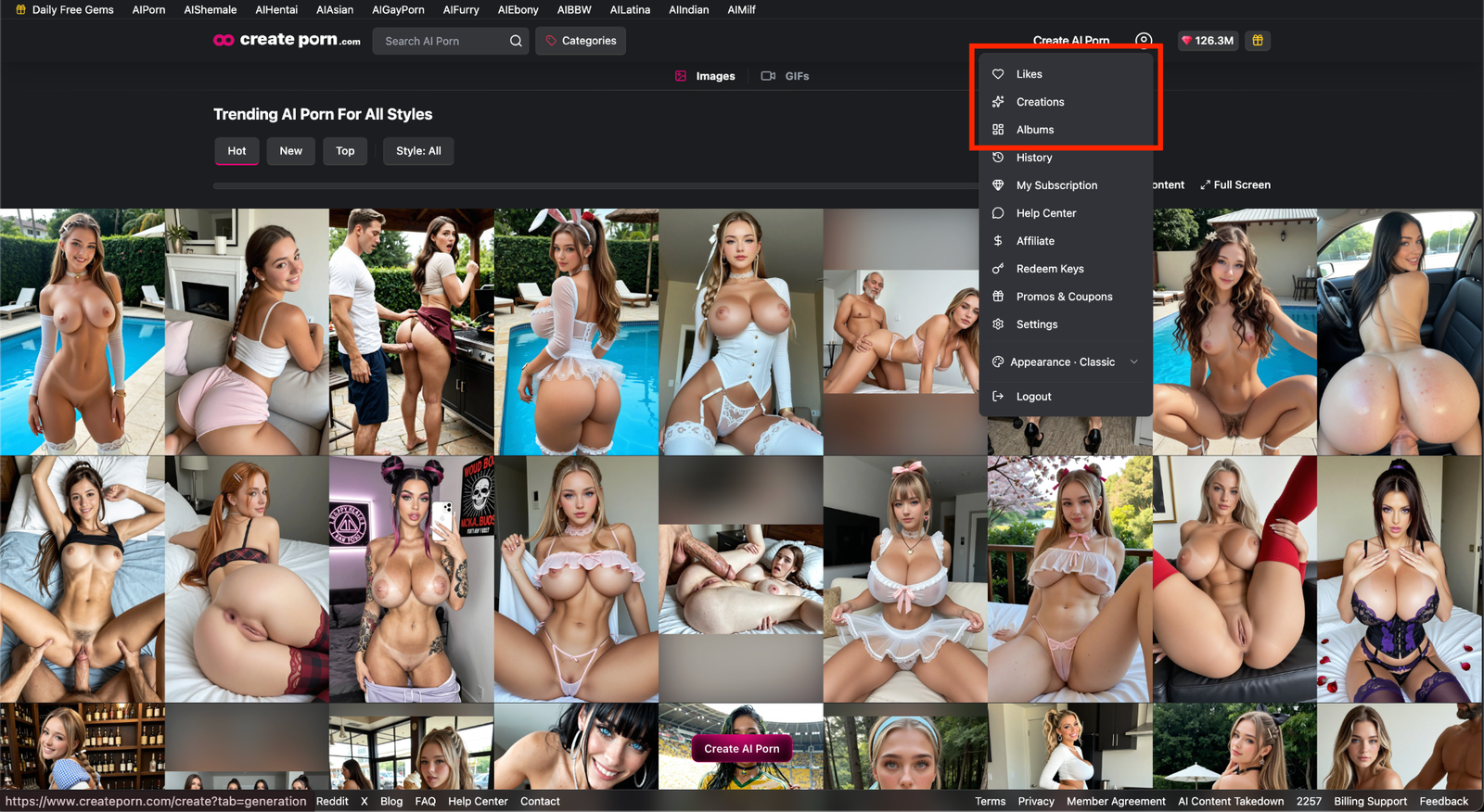
Open the User Menu
Select the person icon in the top-right corner of the page.
Select Your Profile
Use the available Profile options to open the section you want to manage.
Your Profile includes four main sections:
- Likes
- Creations
- Albums
- Profile
Profile Sections
Likes
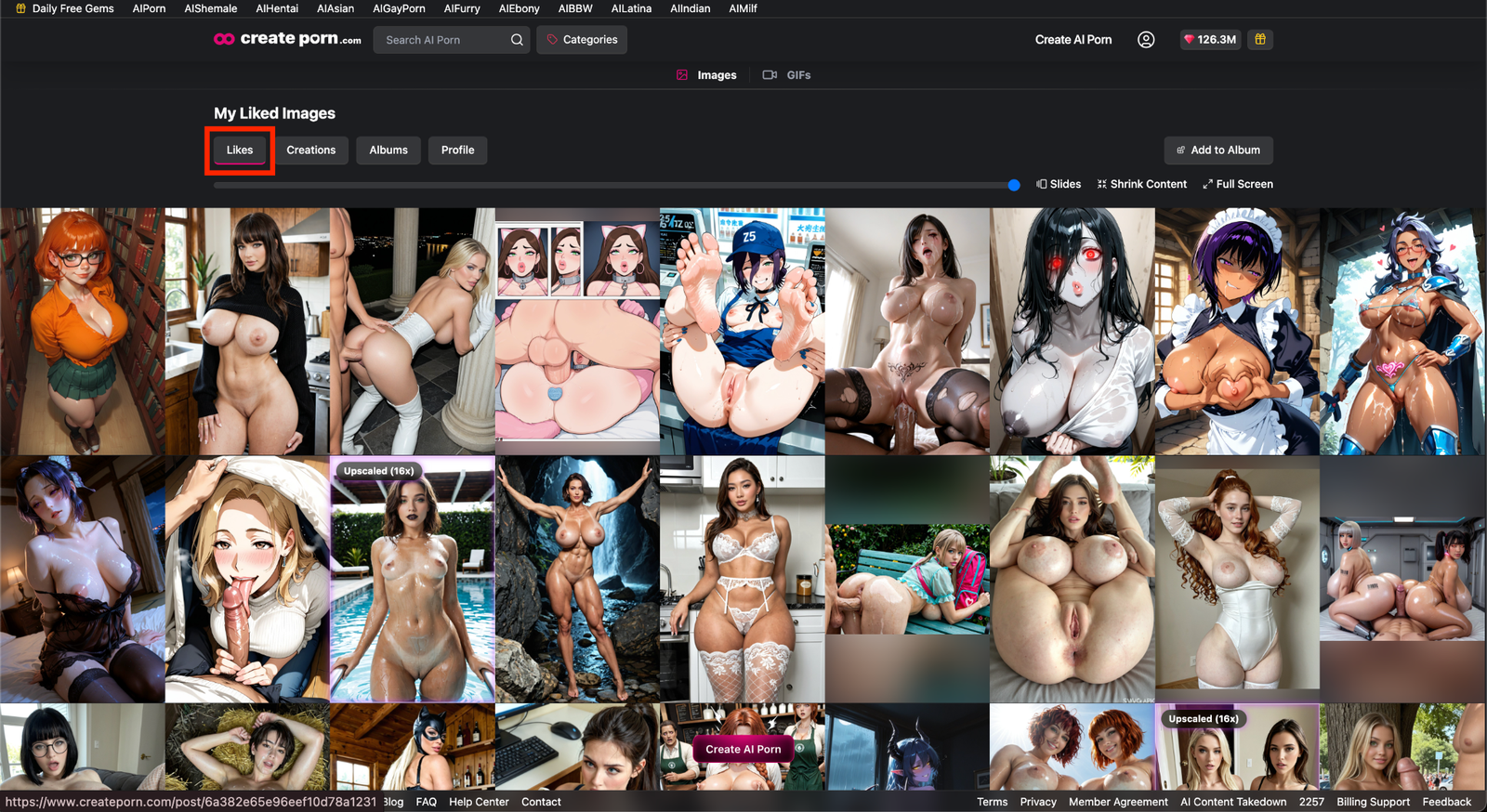
The Likes section contains Images from other creators that you have liked/saved.
Use this section to return to content you enjoyed or want to reference later.
Creations
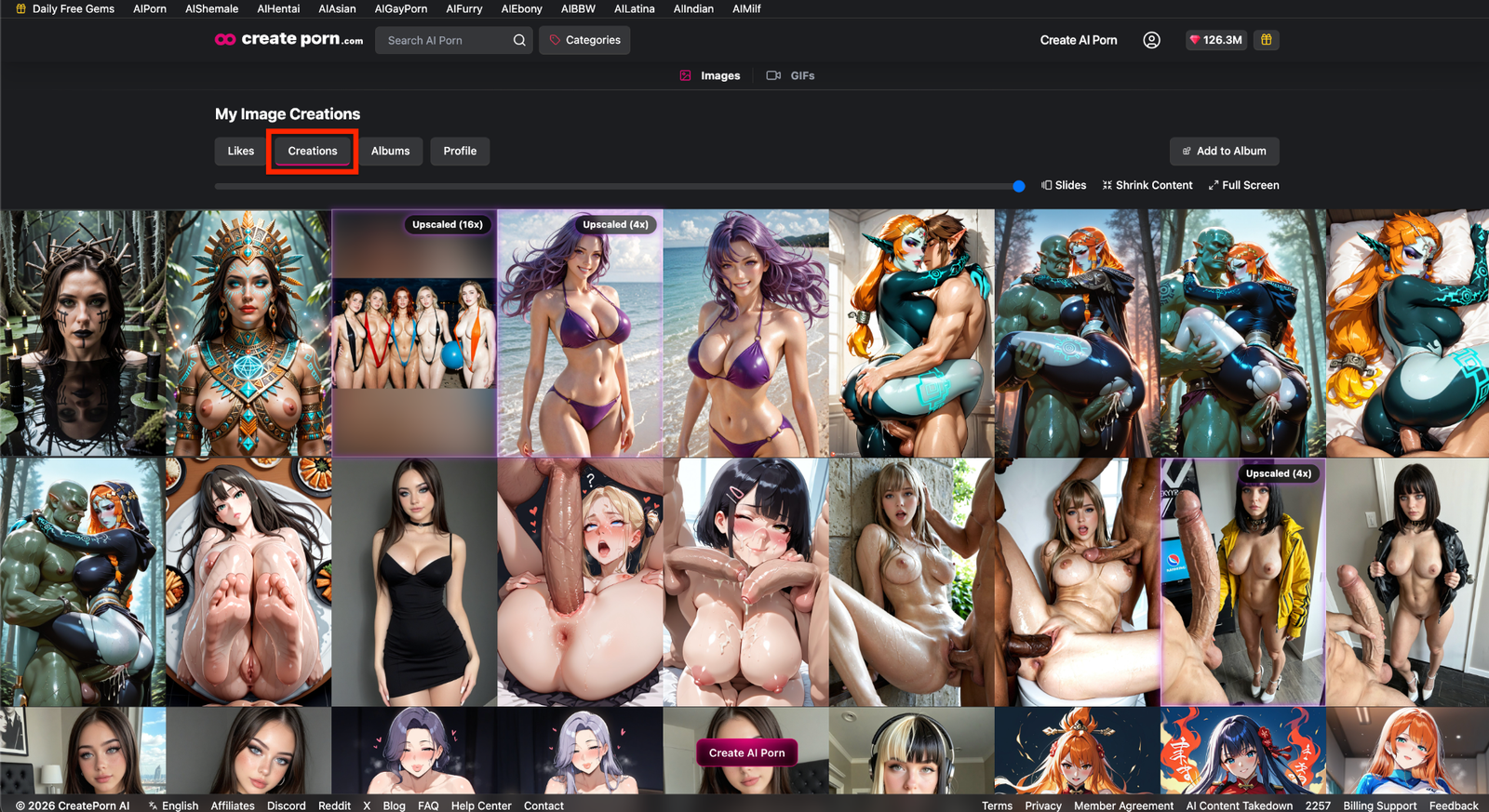
The Creations section contains the Images you generated.
Creations are displayed from newest to oldest, making it easier to find your latest work.
Albums
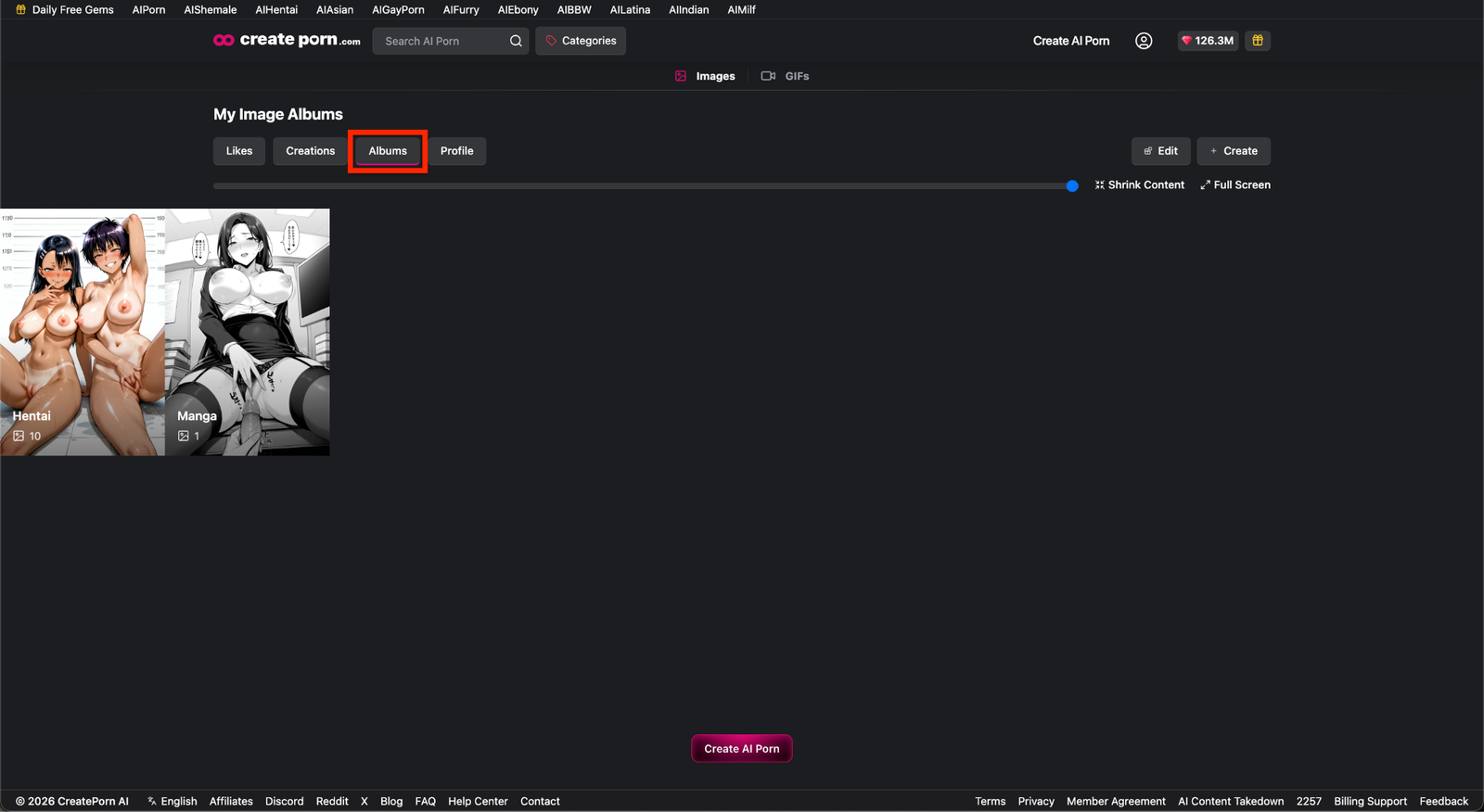
The My Albums page is your central hub for managing your Albums.
You can use Albums to:
- Create custom collections
- Organize your favourite Creations
- Rearrange your Albums
- Edit Album names and descriptions
- Select an Album cover
- Remove Images from an Album
For more details, see our How to Use Albums guide.
Manage Your Profile Settings
You can update your username and privacy settings from the Settings menu.
Open Settings
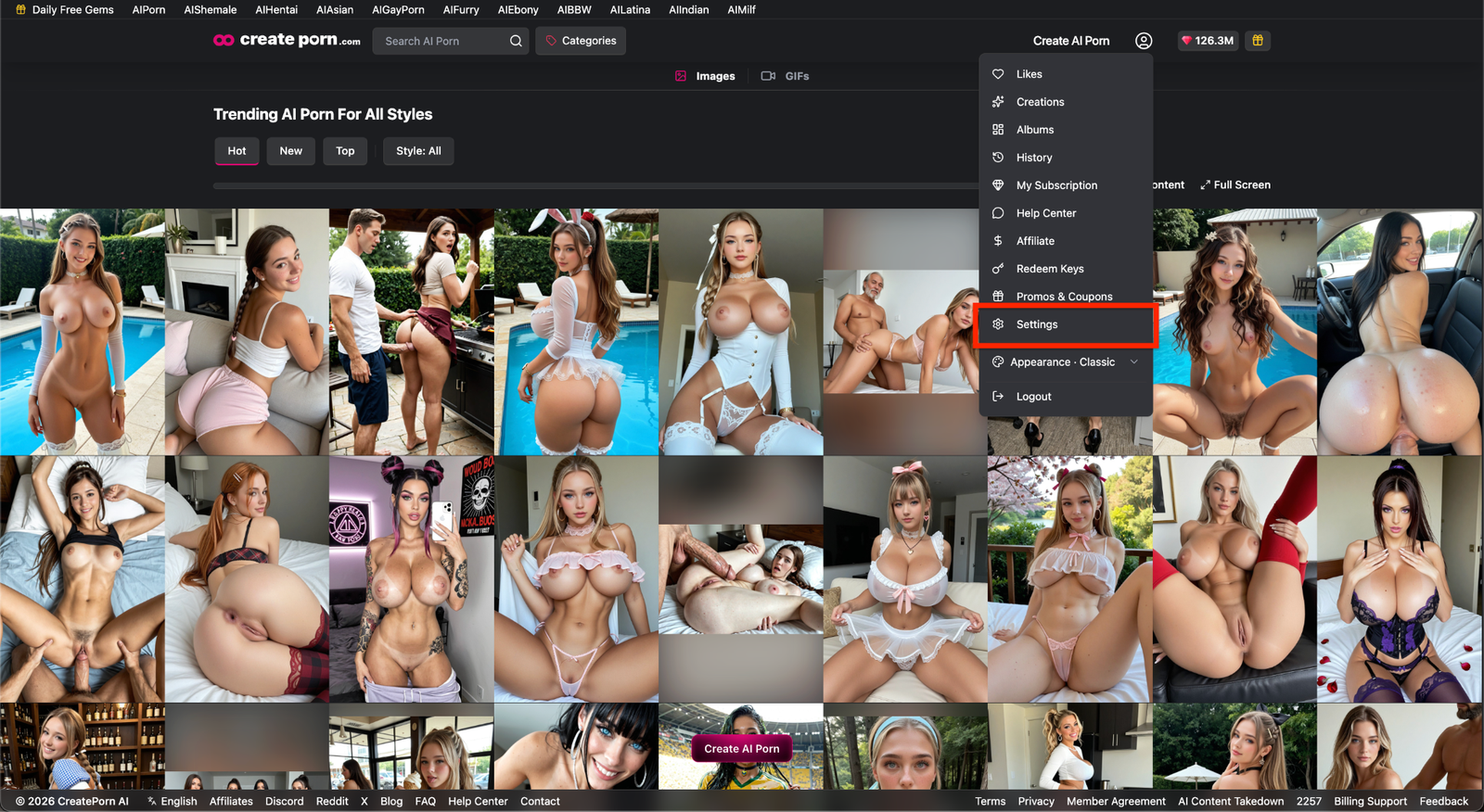
Select the person icon in the top-right corner of the page.
Select Settings from the menu.
Change Your Username or Enable a Private Profile
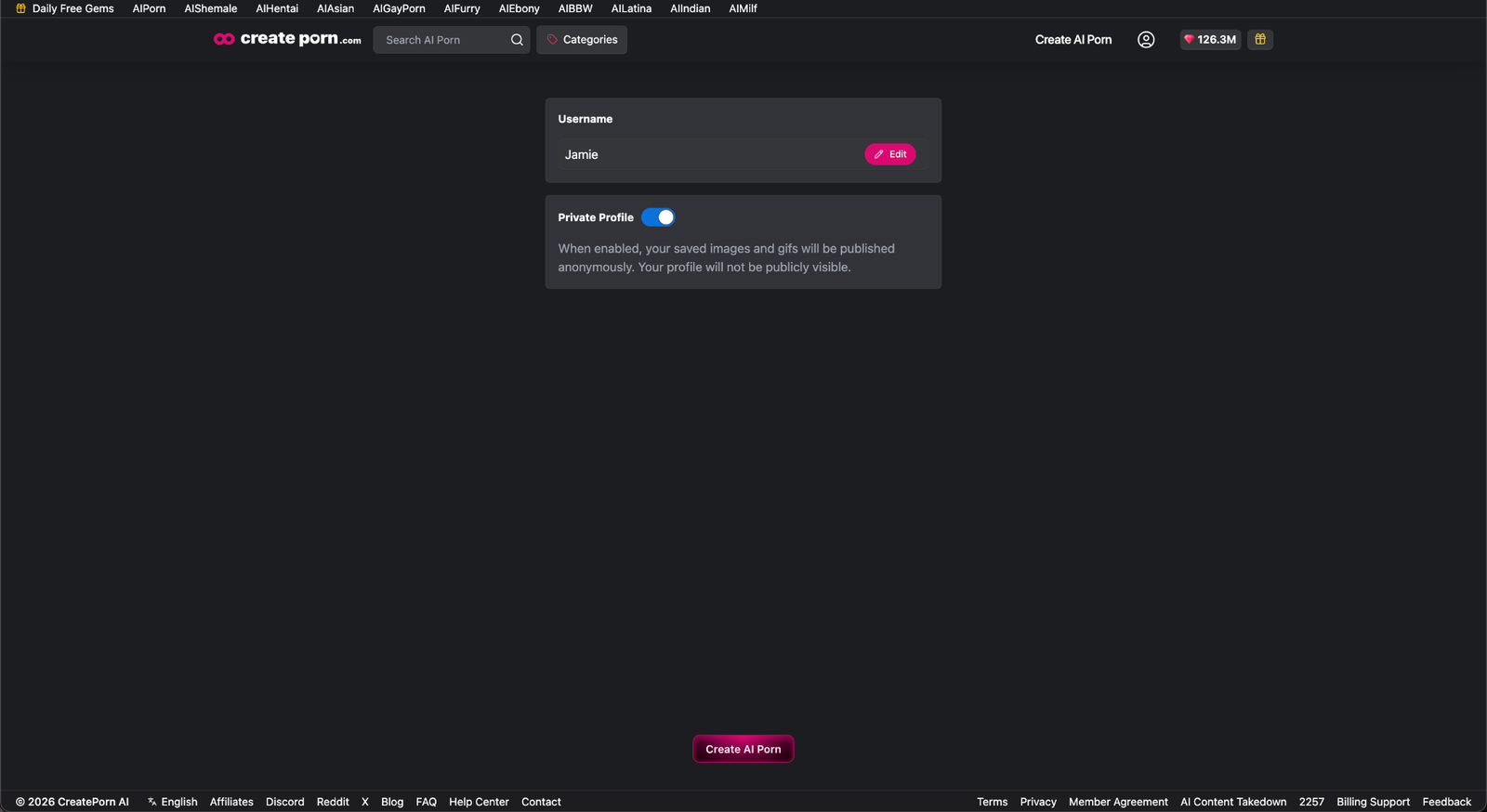
Find your current username and select Edit.
Enter your new username and save the change.
To set your profile as Anonymous, find the Private Profile setting and turn on the toggle.
When Private Profile is enabled:
- Future Creations will display Anonymous as the creator
- Other users will not be able to access your Profile activity
Note: It may take up to 30 days for previously published Creations to display Anonymous after Private Profile is enabled.
To make your Profile public again, return to Settings and turn off the Private Profile toggle.
Need Help?
If you cannot find a Creation, Like, Album, or Profile setting, confirm that you are logged into the correct account.
You can also refresh the page and check each Profile section again.
If the issue continues, contact Support and include:
- The email address connected to your account
- The Profile section you were trying to access
- A short description of the issue
- The relevant Creation or Album link, if available